Example files
The following example files are provided for educational and testing purposes only. Their suitability for any particular purpose other than software testing is not implied.
Room Auralization Demo
This example project contains a Room Auralization demonstration with two acoustic environments and a small loudspeaker system with delays, plus a stereo audio file for testing. The following instructions will help you get started:
- Download the example project by clicking here.
- Unzip the file to your computer. The project contains two files:
- The Fulcrum One project file: Room Mode - Stereo Demo.f1p
- A stereo audio file (48kHz, 24-bit, 2 channels): Room Mode - Stereo Demo.wav
- Open the project in Fulcrum One (version 2026.28.434 or later).
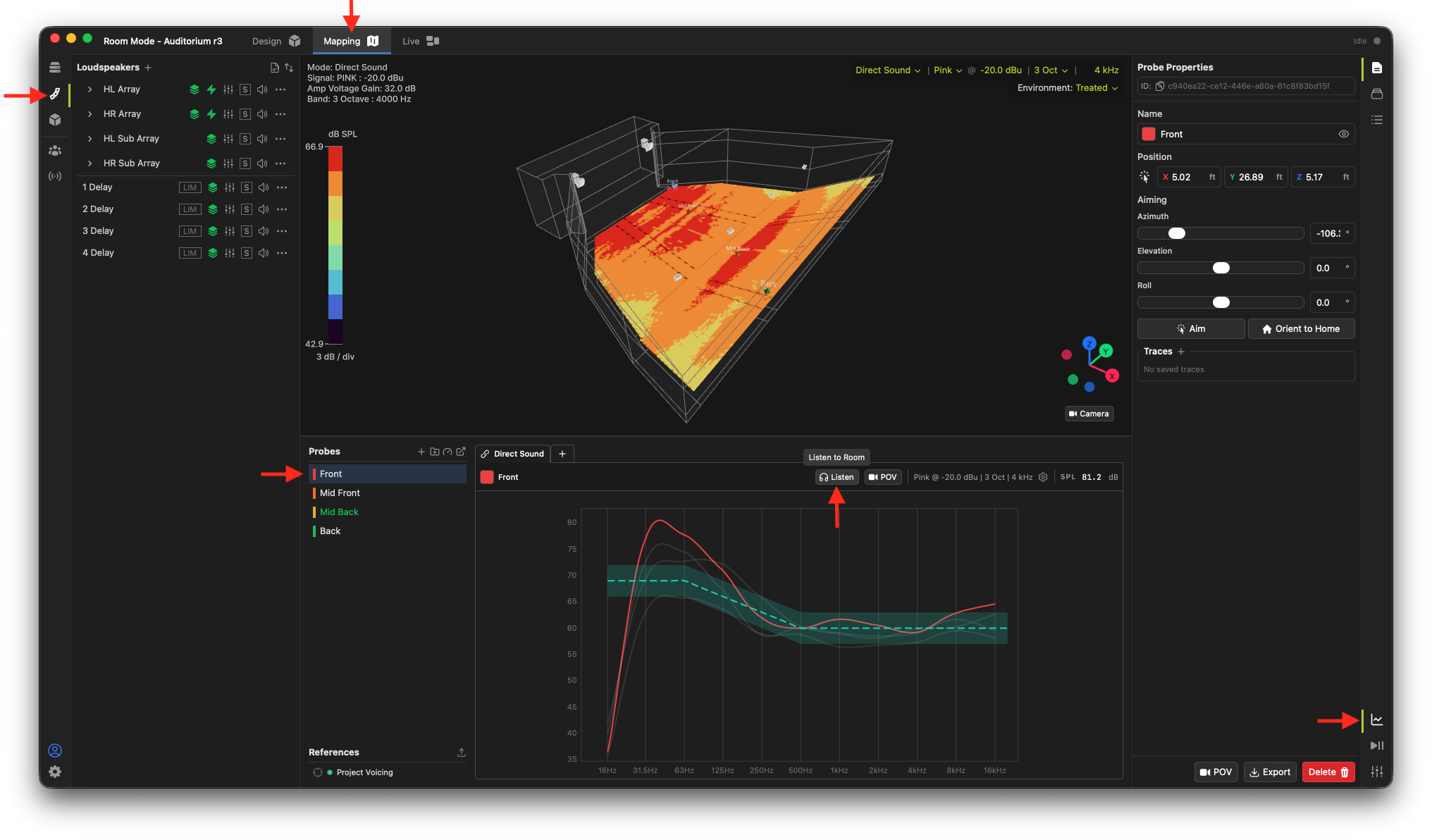
- Open the Mapping tab at the top, navigate to the Loudspeakers toolbox on the left, and open Probes on the right. Select a probe and click "Listen" to begin auralization.
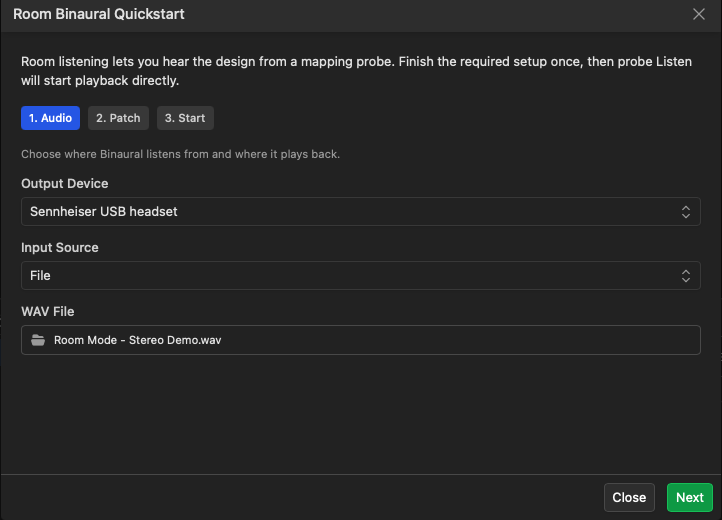
- In the Quickstart window, select your output device (headphones) and choose the Room Mode - Stereo Demo.wav.wav file in your download folder.
- Accept the included settings on the Patch tab and click "Start Listening" to begin auralization.
- Optionally, enable head tracking by choosing an "Orientation Source" in the auralization dropdown box.
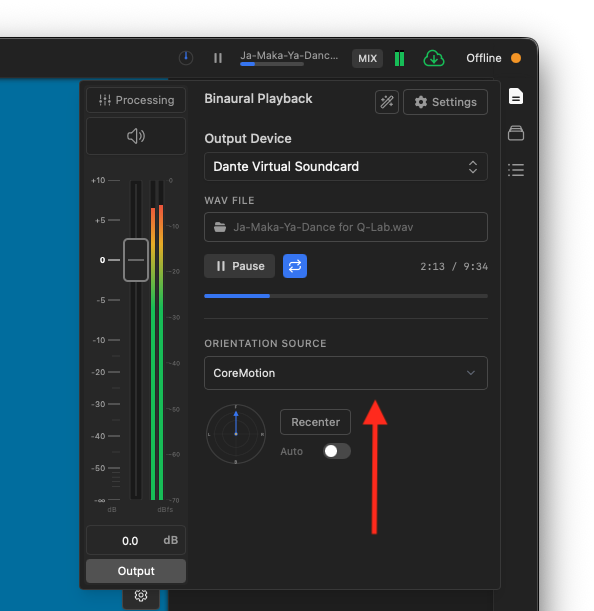
Once you are listening to the auralization, try muting loudspeakers, changing processing, or changing the acoustic environment.
Mix Auralization Demo
This example project contains a Mix Auralization demonstration with active acoustics, source processing, and three musical selections contained in a single multitrack audio file. The following instructions will help you get started:
- Download the example project by clicking here.
- Unzip the file to your computer. The project contains two files:
- The Fulcrum One project file: Mix Mode - Multitrack Demo.f1p
- A multitrack audio file (48kHz, 24-bit, 25 channels): Mix Mode - Multitrack Demo.wav
- Open the project in Fulcrum One (version 2026.28.434 or later).
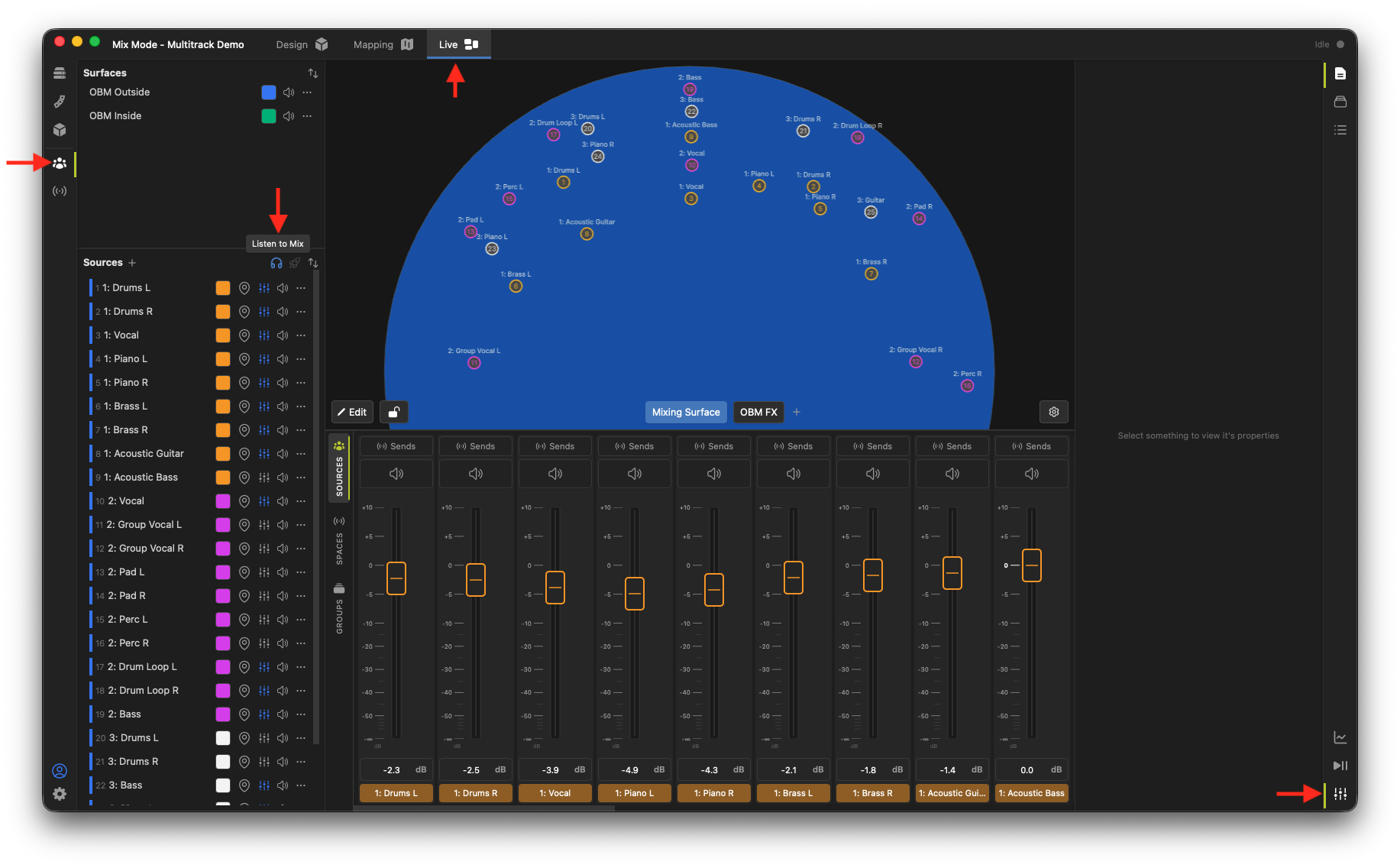
- Open the Live tab at the top, navigate to the Object Based Mixing toolbox on the left, and open Faders on the right. Click "Listen to Mix" to begin auralization.
- In the Quickstart window, select your output device (headphones) and choose the Mix Mode - Multitrack Demo.wav file in your download folder.
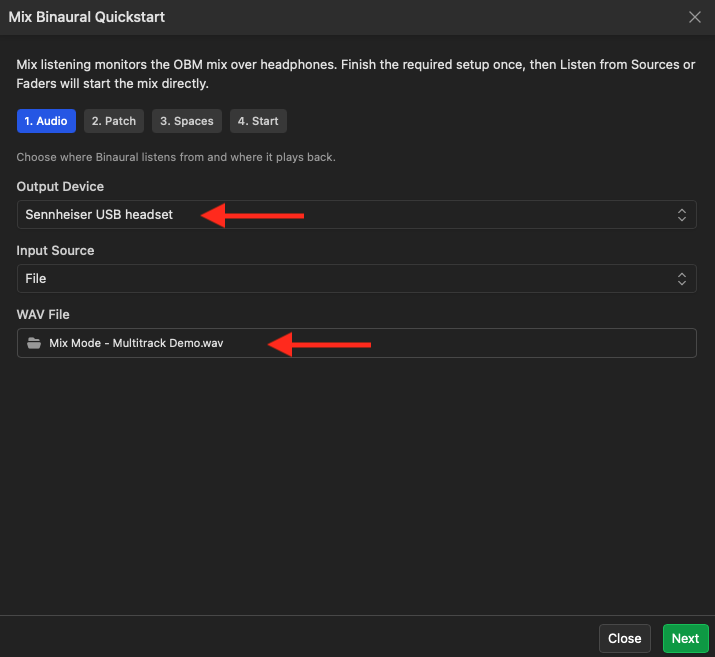
- Accept the included settings on the Patch and Spaces tabs and click "Start Listening" to begin auralization.
- Optionally, enable head tracking by choosing an "Orientation Source" in the auralization dropdown box.
Once you are listening to the immersive mix, try moving sources on the Live screen, changing fader positions or source EQ settings, and creating automations.
Venue Geometry Files
The following venues are provided in Sketchup format for testing and educational purposes. Drop these files into Fulcrum One to learn designing systems in the software.
| Format | ||
|---|---|---|
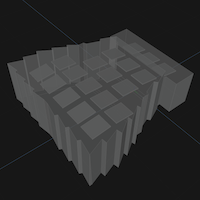 | Fan-shaped demo hall | Sketchup |
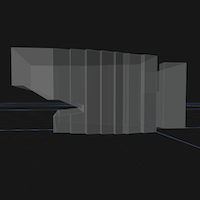 | Fan-shaped demo hall with balcony | Sketchup |
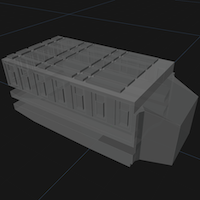 | Orchestra hall | Sketchup |
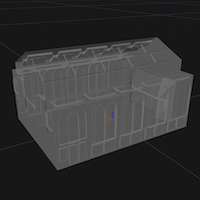 | Tracking studio | Sketchup |
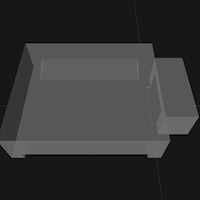 | Gymnasium with stage | Sketchup |